Using the VTAP25-DEV board
This section contains information on all the features available on the VTAP25-DEV board.
Power
The following two power options are available for the VTAP25-DEV development board
 A: Powered through an external PSU
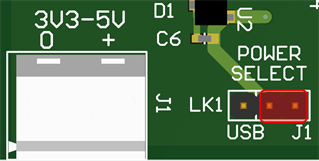
Use the 2‑way terminal block (J1) to supply power from an external power supply unit. The voltage can be 3.3V to 5V DC.
Make sure the POWER SELECT link (LK1) is set between its centre pin and the right pin (J1), as shown below. In this configuration, the VTAP25-DEV board will be a self‑powered USB device, enabling USB communications but without drawing power from the USB host.
B: Powered over USB
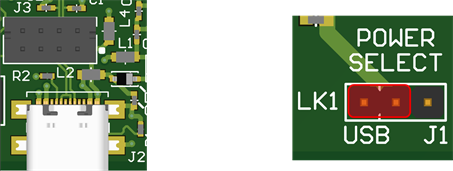
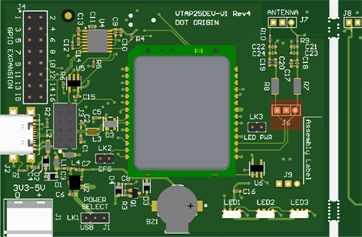
To power the board with USB power (5V), you can either use USB‑C connector J2 or the 8‑way captive header J3 to power the development board.
For either USB power scenario, the POWER SELECT link (LK1) should be set between its centre pin and the left pin (USB), as shown below. This will enable power over USB in addition to USB comms
Configuring the VTAP25‑MOD reader module
The VTAP25‑MOD reader module in the VTAP25 development board can be configured by editing its config.txt file. This could be over USB mass storage, or by sending configuration settings over serial using either the USB COM port, RS‑232 (via J3 or expansion header J4) or over serial comms (Serial1, Serial2), which are available on the expansion header J4. Refer to the
Config bypass function
The VTAP25‑MOD reader module offers a bypass function for the saved config.txt file. Enabling this feature will revert to use of the default VTAP25‑MOD reader module configuration at startup.
When designing your own product, using the VTAP25‑MOD reader module, you might find it helpful to connect the VTAP25‑MOD CONFIG pin to a GPIO on your host processor, so that you can enable this bypass when config.txt options might be inadvertently preventing communication with your host.
To use this feature on the VTAP25-DEV development board, simply fit a jumper across the two pins the of CFG (LK2) header, which will pull the VTAP25 CONFIG pin (13) low and trigger the bypass function at startup.
On-board user feedback
The VTAP25-DEV board has a buzzer and 3 serial LEDs for user feedback. These signals for these are also available on the J4 expansion header, for connecting external serial LEDs or an external buzzer.
NFC Antenna
The VTAP25-DEV board allows you to use either the on‑board antenna or an external antenna, forming multiple configurations. Refer to the VTAP25-DEV board schematic sheet 4 for the antenna circuits. This development board comes with on‑board antenna tuning components populated. You would need to populate the right tuning capacitors and resistors along with headers for using external antennas.
Using the on-board PCB trace NFC antenna
The on‑board NFC antenna on the VTAP25-DEV board can be used out‑of‑the‑box, as it is connected to the VTAP25‑MOD reader module through PCB tracks and is already tuned for its optimum performance. The VTAP25‑MOD is approved by FCC and ISED for use with this antenna .
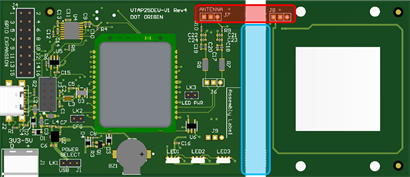
If you need to position the built‑in antenna in a different orientation to the main VTAP25-DEV board, you can carefully detach it by breaking through the two snap points between the main board and the antenna section, highlighted in the picture above. We recommend that you break the snap off points by applying pressure with a screwdriver, when the PCB is lying on a flat surface.
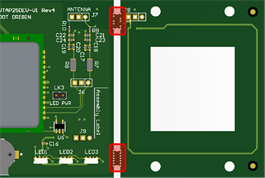
After this you will then need to connect headers to J7 and J8, in order to reconnect the antenna in a flexible way. Remember that your choice of connector may affect tuning.
CAUTION: Do NOT create a link between J7 and J8 while the on-board PCB trace antenna is connected.
Using an alternative external antenna with the development board
The VTAP25-DEV development board supports two ways to connect external, symmetrical, NFC antennas. This can be used to test your own antenna design before you lay out a host board for the VTAP25‑MOD reader module.
Follow the instructions
There are two external antenna connection options
A: An external antenna which uses the tuning network on the VTAP25-DEV board
You can use the on‑board tuning circuit for external antennas in scenarios where the antenna does not have a tuning circuit, such as with off-the-shelf antennas.

Follow these steps to use an external antenna with tuning components on the development board.
-
Remove the R7 and R8 0R resistors to disconnect the on‑board NFC antenna tuning circuit. You can re‑populate the 0R 1206 resistors later, if you wish to use the on‑board antenna again, but ensure that C25‑C28 are removed which will disconnect the external antenna circuit.
CAUTION: Always disable the VTAP25-DEV on-board antenna and tuning circuit before connecting an alternative antenna. Do this by removing R7, R8 and C25‑C28 antenna tuning components. Detaching the VTAP25-DEV on-board antenna is not required and would not be sufficient.
-
Populate a 2mm pitch, 3‑way header on J9.
-
Connect your symmetrical antenna to J9, with the centre pin being 0V.
-
Carry out the antenna tuning process before starting to use it. This will include populating the appropriate tuning capacitors and resistors on the tuning network, on the bottom layer of the development board. The external antenna tuning capacitors C25‑C32 and resistors R11/R12 footprints are 1206. Capacitors should be 2% tolerance or better.
The VTAP25‑MOD reader module test pads for tuning are accessible from the bottom of the VTAP25-DEV development board, with pad names on the silkscreen.
B: An external antenna which has its own tuning circuit at the antenna
Alternatively, you could directly connect the antenna outputs from the VTAP25‑MOD reader module, which would require the tuning circuit to be at the antenna. In this configuration, make sure that your tuning circuit is as close to the antenna as possible. Refer to
You would still need to conduct an antenna tuning exercise, since the existing antenna tuning circuit might not be ideally tuned for connection to a VTAP25‑MOD reader module. The chosen cable may also have some effect on the tuning. Refer to the
Remove the 0R resistors R7/R8 to disconnect the on‑board antenna. Also remove any capacitors on C25‑C28 pads, so that on‑board external antenna tuning circuit is not connected.
CAUTION: Always disable the VTAP25-DEV on-board antenna and tuning circuit before connecting an alternative antenna. Do this by removing R7, R8 and C25‑C28 antenna tuning components. Detaching the VTAP25-DEV on-board antenna is not required and would not be sufficient.
Use J6 to connect the external antenna to the VTAP25-DEV board. To do this you would need to populate a 2mm pitch, 3‑way header here, as it is not populated on standard VTAP25-DEV boards.
USB Comms
There are two options for USB communications on the VTAP25-DEV board:
-
an 8-way captive USB header (J3); and
-
a USB-C connector (J2).
Both are connected to pins 7,8,9 on the VTAP25‑MOD reader module for USB comms and VBUS.
These can be used to connect the VTAP25‑MOD reader module to a PC, for:
-
accessing the VTAP files (config.txt, boot.txt) over mass storage drive;
-
keyboard emulation;
-
USB ComPort for serial comms.
USB comms can be used regardless of your choice of power source (external power supply or USB).
Using the GPIO expansion pins
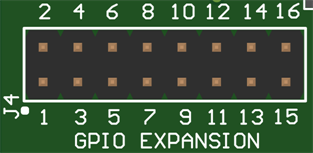
Although the VTAP25-DEV board has various I/Os connected on‑board, such as LEDs, buzzers and config bypass, there are multiple interfaces, especially comms, which you may need to access in your development project. The 16-way GPIO expansion (J4) can be used to access the serial comms and other I/Os when you need to connect your equipment to the VTAP25‑MOD for development and testing.
|
Pin no. |
Pin name |
Pin no. |
Pin name |
|---|---|---|---|
|
1 |
+3V |
2 |
SERIAL1_TXD |
|
3 |
SERIAL2_TYPE |
4 |
SERIAL1_RXD |
|
5 |
SERIAL2_DE / SPI_CS /I 2C_AD1 |
6 |
SPI_SCLK / I2C_AD0 |
|
7 |
SERIAL2_TXD / SPI_MISO / I2C_SDA |
8 |
SERIAL2_RXD / SPI_MOSI / I2C_SCL |
|
9 |
RS232 TX (SERIAL1) |
10 |
WAKE IN |
|
11 |
RS232 RX (SERIAL1) |
12 |
BUZZER |
|
13 |
WAKE OUT |
14 |
SIGNAL |
|
15 |
0V |
16 |
LED |
Note: TXD and RXD pins are named from the perspective of the VTAP25‑MOD reader module, so SERIAL1_TXD is the VTAP25‑MOD transmit output and SERIAL1_RXD is the VTAP25‑MOD receiver input.
The +3V pin is for use as a voltage reference and should only be used to supply current less than 200mA.
Use J4 expansion pins 2 and 4 for direct connection to Serial1 (UART) on the VTAP25‑MOD reader module. The VTAP25-DEV development board also has a UART‑to‑RS‑232 circuit. Use pins 9 and 11 on the J4 expansion header to connect to the VTAP25‑MOD reader module Serial1 over RS‑232. The VTAP25-DEV schematic includes the UART‑to‑RS‑232 circuit, should you need it for your host board development.
Serial2 can be used for RS‑485 communications, by driving an external EIA485 transceiver. Use SERIAL2_DE, SERIAL2_TXD and SERIAL2_RXD for data enable, transmit and receive. Since OSDP is available on all the various physical interfaces of Serial1 and Serial2, the RS‑485 layer using the external transceiver can also use OSDP. This will allow you to design and test an RS‑485 OSDP NFC reader. Refer to the
The VTAP25‑MOD reader module Serial2 interface can be configured for SPI, I2C or UART. All the pins for Serial2 comms and SPI/I2C configuration are available on the J4 expansion header. Refer to
Always ensure connection of the 0V (pin15) on J4 to the 0V of the connected equipment (over Serial1/Serial2) as a common reference point for signals.
Although the VTAP25-DEV development board features a buzzer and 3 serial LEDs, the outputs from the VTAP25‑MOD reader module are also brought out to the J4 expansion, to drive external buzzer or serial LEDs. Refer to
Note: Save power when using external LEDs by removing the LED PWR (LK3), which will disconnect the on‑board serial LED circuit. If the link remains connected, the first three external serial LEDs will output the same flash/animation as the on‑board LEDs. This duplication can be useful, if you need to verify the output of your external serial LED circuit.
The WAKE_IN and WAKE_OUT pins are also brought out on the expansion header. These can be used in low‑power and sleep modes for waking up the VTAP25‑MOD reader module (WAKE_IN) or waking up the host processor (WAKE_OUT).
The SIGNAL pin can be used in conjunction with any Serial2 interface type (I2C, SPI or UART). It will indicate that a command response is available to be read over this interface. This can eliminate the need for polling, to determine when a response is ready.
Refer to
Related reading: