First steps with VTAP Agent
Select a step below for the details:
 Step 1: VTAP Reader panel
The VTAP Reader parameters control how a VTAP reader connected to this PC will behave.
-
Refresh the Port parameter by using the refresh button
 to detect connections available, and select a VTAP reader connected to the PC from the dropdown menu. (There may be a green spot next to the heading of the VTAP reader panel if a reader is detected, or a red spot if not.) If there is no VTAP reader currently connected, you can still choose the COM port that the reader will use when it is later connected.
Note: The VTAP reader requires a connection to the PC running VTAP Agent - ideally USB. If you are having problems, do check that the configuration for your VTAP reader (in the config.txt file) does not disable the VTAP USB COM port, which is otherwise enabled by default.
-
Choose whether you want the connected VTAP reader to be:
-
Cloud‑managed. If your VTAP reader is being managed through the VTAP Cloud service, you will also have the option to Send Tap Data to VTAP Cloud for processing actions defined there, as VTAP Cloud applications and web service integrations.
Note: Cloud management will overwrite any existing VTAP configuration, with settings saved in VTAP Cloud for this reader. If you may want to return to your initial configuration, copy the config.txt file on your reader to another location before saving the Cloud‑managed option in VTAP Agent.
CAUTION: Do not select Cloud‑managed mode for a VTAP100‑PRO reader. If you intend to use VTAP Agent with a VTAP100‑PRO reader, please check with vtap‑support@dotorigin.com that the reader is set up correctly in VTAP Cloud for your intended mode of operation.
-
Send Tap to a local web server. If this is chosen, you set a period in ms for tap payloads to remain available. 1 second is the default. You are looking to retain payload information for the minimum amount of time, to ensure that only recent tap data can be received by your web application. This can prevent the web application reading leftover tap data when it starts up. The period has to be long enough for your application to work reliably, which depends on the frequency of polling for tap data by the asynchronous JavaScript in the web page.
-
-
Finish by selecting the Save button
 to confirm your choices. (Some choices may prompt you, in the left hand panel, to select the Restart Agent button
  before they can take effect.) If you now have a Cloud‑managed VTAP reader, refer to the VTAP Cloud‑managed reader section for more about how it will behave. If you have chosen to deliver tap payloads to a web page, refer to the Web server for tap data section for more about how that works. (Your VTAP reader with VTAP Agent can do both: it can be Cloud‑managed and deliver tap payloads to a web page running in a web browser on the same computer.)
 -
Check the status of the connected reader at any time by selecting the
 button in the VTAP reader panel. This will display additional information about that VTAP reader, which is updated every 10 seconds: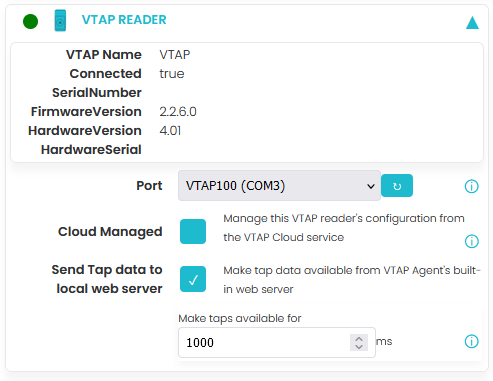
Additional VTAP reader status information
-
If you want to suspend the VTAP Agent application, select the Pause VTAP Agent button
 on the left hand side at any time. Pause will pause VTAP Agent control of the VTAP reader operation and release its COM port.
Step 2: VTAP Agent Configuration Server panel
The VTAP Agent Configuration Server parameters can be used to change how the VTAP Agent User Interface runs, if needed.
-
By default the VTAP Agent configuration server will use Port 9190, as this is not used by common office applications, but it can be changed to your preferred port if there is a clash with your PC setup.
-
By default the User Interface, which is a built-in web server, is enabled. It can be disabled here, by unchecking Enable Configuration Server, if you want to make more advanced changes through the configuration text file. Please contact vtap‑support@dotorigin.com for help, if you need this option.
-
The User Interface can be password protected, if you choose to set an Admin password here. After doing that, you will have to log in with username 'admin' and the password that you set, to make any changes through the VTAP Agent user interface. (This is intended to prevent accidental changes rather than prevent all changes, as the password requirement can still be overridden using the configuration text file. If your Windows configuration is also set to ensure that only administrators can edit the configuration file directly, then this option will prevent ordinary users from making changes to VTAP Agent operation.)
Step 3: Settings panel
If you choose Settings  from the left hand side you can toggle another panel into view, showing VTAP Agent settings:
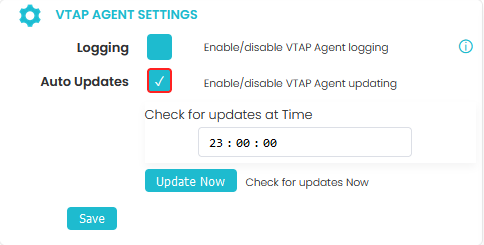
VTAP Agent Settings extra panel
The VTAP Agent Settings simply control whether the VTAP Agent application is allowed to routinely check for updates and update automatically (at a time you set, respecting your PC time zone settings). There is an Update Now button, to check for updates immediately.
There is also a VTAP Agent logging function, which you might be asked to enable by VTAP support staff, if they are helping you troubleshoot an issue with your application.
Step 4: Other controls
There are a few other buttons at the left hand side of the screen. These allow you to Pause then  Resume, or Restart VTAP Agent control of your VTAP reader configuration. Pause will pause VTAP Agent control of the VTAP reader operation and release its COM port. A restart may be required after making significant configuration changes. You can also access the
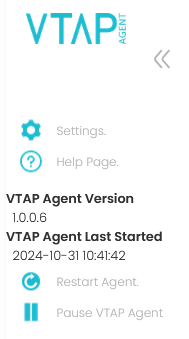
VTAP Agent left hand panel
If this panel is reduced in width to show only the buttons, use the arrows  to see more.
Related reading: