Cloud‑managed reader
This section describes how using your VTAP reader will change, when it is has been switched into Cloud‑managed mode by the VTAP Agent.
CAUTION: Do not select Cloud‑managed mode for a VTAP100‑PRO reader. If you intend to use VTAP Agent with a VTAP100‑PRO reader, please check with vtap‑support@dotorigin.com that the reader is set up correctly in VTAP Cloud for your intended mode of operation.
VTAP Reader LEDs
The first change you will notice when you start Cloud management of your VTAP reader will be a steady red LED on the top of the VTAP reader. This indicates that the device is booting up, which can take up to 10 seconds.
When boot up is complete you should see the LED flash red while the device establishes a network connection. A steady blue LED indicates you have a successful connection to the network and the Internet, and therefore to the Dot Origin cloud platform.
Note: The steady blue LED will flicker every 30s in response to a heartbeat signal, giving visual confirmation it is still in communication with the VTAP Cloud.
Continued LED red flashing signals a problem. In this case please contact vtap‑support@dotorigin.com to help with troubleshooting.
Using the VTAP Cloud platform
If you do not already have a VTAP Cloud subscription for this VTAP reader, and need access to the VTAP Cloud Admin Platform, you should contact vtap‑support@dotorigin.com with your VTAP reader serial number, to register for access to the VTAP Cloud service.
The unique serial number for each VTAP reader is on a sticker on the base:
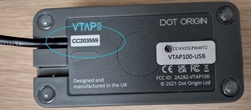
Note: If your VTAP reader does not have a serial number in firmware which matches the sticker on the case, this can be corrected by contacting vtap‑support@dotorigin.com. Check the BOOT.TXT file, where the serial number is listed as 'VTAP label' if present.
Note: If your VTAP reader has a software- or hardware‑locked configuration, this will need to be unlocked before it can be managed by VTAP Cloud.
In Cloud mode, the VTAP reader can connect to the VTAP Cloud Platform https://vtap.dotorigin.cloud. If you also selected Send Tap Data to VTAP Cloud then you can choose applications on the VTAP Cloud platform to return appropriate actions for the VTAP to perform, in response to a successful pass tap.
If you have powered your VTAP reader, and it has successfully connected to VTAP Cloud, the reader itself will show a steady blue LED. You should also find it listed on the Readers page of the VTAP Cloud platform, with a green status dot alongside, meaning it has connected to the VTAP Cloud within the last hour. (Refer to the
If you select the blue button  next to the reader you are interested in, you can view details about its settings, while on the Readers page of the VTAP Cloud platform, such as reader health and information about the most recent reader activity. The
  button will allow edits.
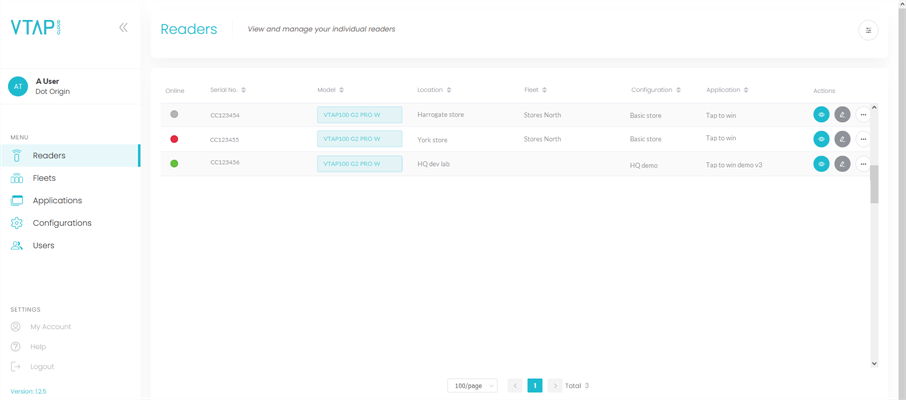
Example Readers page on the VTAP Cloud platform
 Related reading: