First steps with VTAP Cloud
You will have been taken through a VTAP100 Cloud onboarding process by Dot Origin Sales staff, to identify the essential elements of configuration for your VTAP100 readers. At that time you will have supplied details for a primary user to receive a VTAP Cloud account invitation to set up an account password.
Go to https://vtap‑admin.dotorigin.cloud/ and use your VTAP Cloud primary user login details to open the VTAP Cloud platform. (If you experience any difficulty contact vtap‑support@dotorigin.com.)
You will start on the Readers page, where you should see all your VTAP Cloud Connected readers listed by their unique serial numbers.
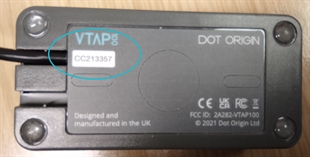
 Serial number
The unique serial number for each VTAP100-CLOUD reader is on a sticker on the base:
Online status
The online status of each reader is described on the VTAP Cloud platform by a red, amber, green or grey dot.
-
Green - currently online and connected to the VTAP Cloud
-
Amber - last connected to the VTAP Cloud more than 10 minutes ago
-
Red - last connected to the VTAP Cloud more than 1 hour ago
-
Grey - details entered manually, this reader has not yet connected to the VTAP Cloud
If you have powered your VTAP Cloud Connected readers and they have successfully connected to VTAP Cloud the readers themselves will show a steady blue LED, and you should see them listed on the Readers page of the Cloud platform, with a green status dot alongside. (Refer to
Choose the grey 'Edit Properties' button  and record the Location, and optionally a Parameter 1 and Parameter 2for each VTAP reader. Along with SSID and IP address, these are all pieces of information that this reader could later be required to send in response to a tap.
Location
Location is a free text field for each VTAP reader. Describe the location in a way that someone else in your organisation could find.
It is helpful to describe the location differently for readers that need to connect using different Wi‑Fi details, typically where they are in different buildings, using different routers.
If you have just a few readers, choose the grey 'Edit Properties' button for each in turn and select their Configuration and their Application from those available in the drop down menus.
Configuration
Controls which passes can be read by a VTAP reader. Includes one or more Wi‑Fi settings and Apple and Google Wallet IDs and keys or slot numbers. You can add or change the configurations available for your organisation on the Configurations page.
Apple Wallet and Google Wallet defaults will ensure you can use Dot Origin demo passes. To work with your own Apple or Google passes you will need to add their details to the configuration.
It is very important that your VTAP PRO in Cloud mode can always connect to Wi-Fi, so do add up to 4 Wi-Fi Networks to your Configuration. This should ensure it will always be able to join a Wi-Fi network. The VTAP PRO reader will try each option in turn, until it finds a network available for it to connect through.
Application
Controls the actions that follow a pass read by a VTAP reader. This can include both user feedback actions via the VTAP reader, such as beeps or LED flashes, and sending that pass read data on in a defined format to another system.
You will only be able to select from applications stored on the VTAP Cloud by your organisation. Dot Origin will provide or collaborate on public or private scripts to suit your intended application, based on your onboarding form. This results in one or more application types available to your organisation.
Through the Applications page you create one or more applications, based on an available application type. Each application is set up by the defining values for the parameter(s) that can be changed in your application type.
If you have many readers, choose the Fleets page from the side menu.
Use the button + Add Fleet. Give your new Fleet a name (free text) and select the associated Configuration and their Application from those available in the drop down menus then use the button Create Fleet.
Next choose the white 'Manage Fleet' button  beside your new Fleet. Select the 'Available Readers' tab and check boxes next to the readers you want to include in that Fleet. (To help you find the readers you need to include, you can sort that list by Location, Serial No. or Online status, just select the word to sort on that property, or toggle sort direction.)
Repeat this step if you need to create more Fleets.
Fleet
A group of readers that should behave identically. They all use the same configuration and application pair.
You can add or change the fleets available, and the readers that belong to each, on the Fleets page.
Note: Any changed reader properties will be sent to affected online VTAP readers immediately, and to offline readers when they next connect to the VTAP Cloud.
Related reading: