Change Wi‑Fi network
If you no longer have a network with the SSID or password that was initially configured for your readers, or you need them to use a different network, it is easiest to change their configuration if you do it before you remove the old network they are currently using.
 When the old network is still in place:
Go to the Configurations page and choose the grey 'Edit Configuration' button  . At the end of the configuration choose the Add WiFi network button. Type in the extra SSID and WiFi Password for your new network, then use the blue Update Configuration button.
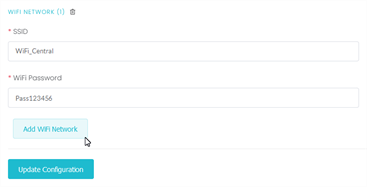
Use 'Add WiFi Network' button on the Configurations Page
Do not remove the old network until your readers have all updated their configuration.
After the reader configurations have all been updated, and when your new network is in place, you may want to change their configuration again to remove the old network option. This would speed up initial connection of new readers using this configuration, but it is not essential.
Note: There is no need to delete the old Wi‑Fi settings from the VTAP configuration in order to add a new set. If the VTAP reader has multiple possible Wi‑Fi configurations it will try them all, in numerical order, until connection to the VTAP Cloud is achieved. And even when the SSID=vtap and WiFi Password=passreader combination is deleted, the reader will still try that option if nothing else works.
If the old network has already been removed:
Your readers will be unable to connect to the Cloud platform and they will need to be individually reconfigured using their Hotspot Mode function. Refer to
Related reading: